

longbridge ai
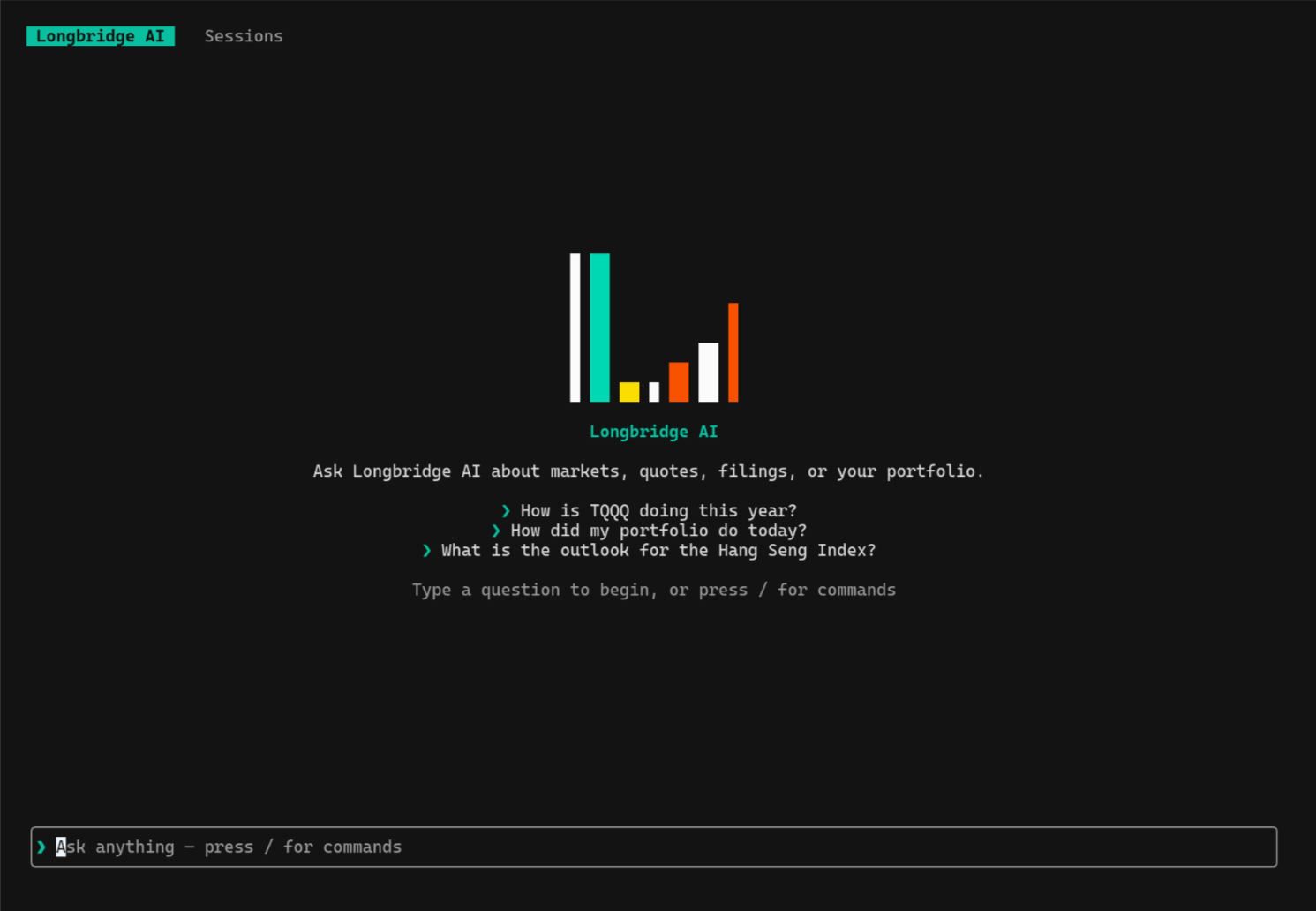
longbridge ai opens a full-screen chat with LongbridgeAI inside your terminal.
Ask about markets, quotes, filings, or your own portfolio; the answer streams in live, rendered as
Markdown with charts, tables, and live quote cards drawn in the terminal.
The model and its tools run server-side, so the CLI only needs your Longbridge login — no API key, no model configuration, and nothing to install beyond the CLI itself.
longbridge aiDemo
Before you start
Sign in once — every CLI command shares the same session:
longbridge auth loginYou can also start longbridge ai while signed out and run /login from inside the chat: it opens
your browser to authorize the terminal (the URL is copied to the clipboard too, in case the browser
does not open).
The screen
| Area | What it shows |
|---|---|
| Title bar | The brand badge, a Sessions button, the conversation title, and a ticker of every security this chat has mentioned with its live quote |
| Transcript | Your questions and the streamed answers, plus tool activity and references |
| Prompt | A multi-line editor; / opens the command palette, which hangs off the prompt box |
| Status row | Streaming spinner while a turn runs, ▲ Scrolled up when you have scrolled back, and one-line confirmations (Copied to clipboard., Exported to …) |
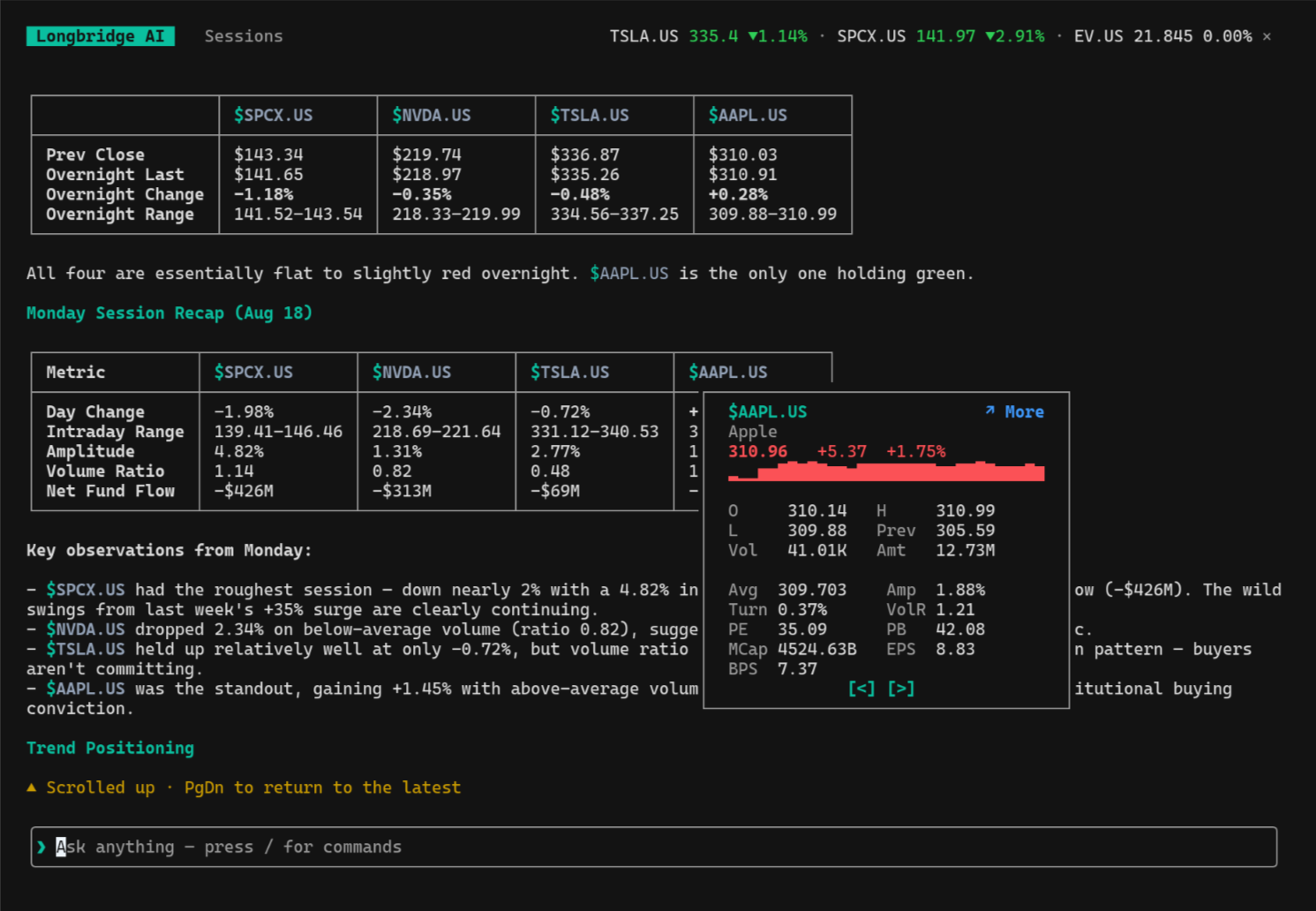
Click a security — in the ticker, or where an answer mentions it — to open its quote card:
last price and change with an intraday sparkline, O/H/L, previous close, volume and turnover,
average price, amplitude, turnover rate, volume ratio, PE (TTM), PB, market cap, EPS, and net assets
per share. ←/→ (or the [<] / [>] buttons) step through the other securities in the
conversation, and More ↗ opens the security on longbridge.com.
Asking questions
Type a question and press Enter. Shift+Enter inserts a newline, and pasted multi-line text is
inserted whole rather than submitted line by line.
How is TQQQ doing this year?
How did my portfolio do today?
What is the outlook for the Hang Seng Index?
Compare NVDA.US and AMD.US on revenue growth and margins
Summarize Tesla's latest quarterly filing
While an answer is streaming, Esc cancels it. Esc on an idle screen clears the input — it never
quits.
Suggested follow-ups and references
An answer can come back with source references and suggested follow-up questions. Click a follow-up,
or press Alt+1 … Alt+9, to send it as your next question. References list where the answer’s
facts came from.
Questions the agent asks you
Some tasks need your input before the agent can continue. LongbridgeAI can raise three kinds of prompt in the transcript:
- A question with options — click an option to answer.
Xskips the question;Esclets you type a free-text answer instead. - A multi-select question — toggle several options, then Confirm selection.
- An authorization request —
AlloworDeclinebefore the agent runs the action.
Cancelling the turn drops the pending question; starting a new conversation clears it.
Slash commands
Press / for the command palette — ↑/↓ to move, Enter, Tab, or a click to run. Typing a
prefix filters the list.
| Command | What it does |
|---|---|
/new (/clear) | Start a new chat |
/retry (/regenerate) | Regenerate the last answer |
/copy | Copy the last answer to the clipboard |
/export | Export the conversation to a Markdown file |
/quote [SYMBOL] | Open a live quote — for the given symbol, or the last one mentioned |
/resume | Open saved conversations and resume one |
/settings | Open Settings |
/agent <agent-id> · /agent reset | Switch agent, or return to LongbridgeAI |
/login | Sign in to Longbridge |
/logout | Sign out |
/help | Show the command and key reference |
/exit (/quit) | Exit |
A bare exit or quit typed at the prompt also leaves, as does pressing Ctrl+C twice.
Keyboard shortcuts
| Keys | Action |
|---|---|
Enter | Send |
Shift+Enter | New line |
Tab | Complete a command |
↑ ↓ · Ctrl+P Ctrl+N | Previous / next prompt (history persists across sessions) |
Ctrl+Z Ctrl+Y | Undo / redo the last edit |
Shift+↑ Shift+↓ · PgUp PgDn | Scroll the transcript |
Ctrl+Home Ctrl+End | Jump to top / latest |
Alt+← Alt+→ | Move by word |
Ctrl+A Ctrl+E Ctrl+U Ctrl+K Ctrl+W | Move / delete within the line |
Alt+1 … Alt+9 | Send a suggested follow-up |
Ctrl+F | Search the transcript |
Ctrl+R | Open saved conversations |
Esc | Cancel the answer, or clear the input |
| Drag · double / triple click | Select and copy (word / line) |
Ctrl+C ×2 | Quit |
How answers are rendered
Everything is drawn with the terminal’s own colors, so the chat follows your theme.
- Markdown — headings, lists, emphasis, links, and blockquotes.
- Code blocks — shaded background, a language tag, and syntax highlighting.
- Tables — box-drawn and column-aligned.
- Charts — the agent’s
vis-chartoutput is drawn in the terminal:line,area,dual-axesandscatterplots, verticalcolumnbars over a labelled value axis, solid horizontalbars, a braille donut forpie, a braille polygon forradar,histogramranges, and a five-number summary forboxplot. Narrow terminals fall back to a simpler form rather than breaking. - Quote cards — a security the answer references is drawn as a card with its current quote.
- Tool activity — which tools the turn ran, and which failed (see Settings).
Conversations
Conversations are stored on your Longbridge account, not only on this machine, so the chats you start in the terminal are the same ones you see in LongbridgeAI elsewhere. Titles are generated by the server as the conversation takes shape.
/resume (or Ctrl+R) opens the list: numbered entries with their title and agent · age, live
search as you type, per-entry delete, and a New session action. Enter or a click resumes;
Esc clears the search, then goes back.
Resuming restores the transcript, the ticker, and any question that was still waiting for your answer.
Copy and export
- Select text — drag across the transcript to select; double-click selects a word, triple-click a line. The selection is copied when you release (over OSC 52, so it works through SSH when your terminal allows it).
/copy— copies the last answer./export— writes the conversation tolongbridge-ai-<title>-<timestamp>.mdin your Downloads folder (falling back to your home directory), and prints the path.
Settings
/settings opens the settings screen. Changes apply immediately and persist in
~/.longbridge/terminal.json, shared with longbridge tui.
| Setting | Description |
|---|---|
| Up/Down colors | Which color means a rising price — red up or green up |
| Tool calls | Which of a turn’s tool calls stay in the transcript: all, failures only, or off |
| Notify when done | Ring the terminal when an answer lands and the window is not focused |
| Ticker in the title bar | Show the securities this chat has mentioned, with their quotes |
| Live quote cards | Draw a security an answer references as a card with its current quote |
Turning off live quote cards also saves two quote requests per answer.
The settings screen also shows the account panel: sign-in status, when the session expires, and Sign in / Sign out actions.
Choosing an agent
By default the chat talks to the LongbridgeAI assistant. To use another agent from your workspace:
# Discover the agents available to your account
longbridge agent list

# Start the chat with a specific agent
longbridge ai --agent <AGENT_UID>
Inside the chat, /agent <agent-id> switches agent (which starts a new conversation) and
/agent reset returns to LongbridgeAI.
Options
| Option | Description |
|---|---|
--agent <AGENT> | Agent UID to converse with; defaults to the LongbridgeAI assistant |
--lang <LANG> | Language for content fetched from longbridge.com (zh-CN or en); defaults to your LANG |
-v, --verbose | Print request info (host, elapsed) to stderr |
Related
longbridge acp— run LongbridgeAI as an ACP agent inside another client application, instead of chatting in the terminal.longbridge tui— the full-screen market and portfolio dashboard.- Longbridge MCP — expose Longbridge data as tools to your own AI harness.
Troubleshooting
“Sign in to ask” — the session expired or you are signed out. Run /login, or
longbridge auth login in another terminal.
“Terminal too small” — the chat needs a larger window; resize and it redraws.
No conversations listed — the list is loaded from your account. If it reports a load failure, check your connection and reopen the list.